How to Start a 24/7 Lofi Radio Station on YouTube
Updated 8 min readby the streamrunnr team
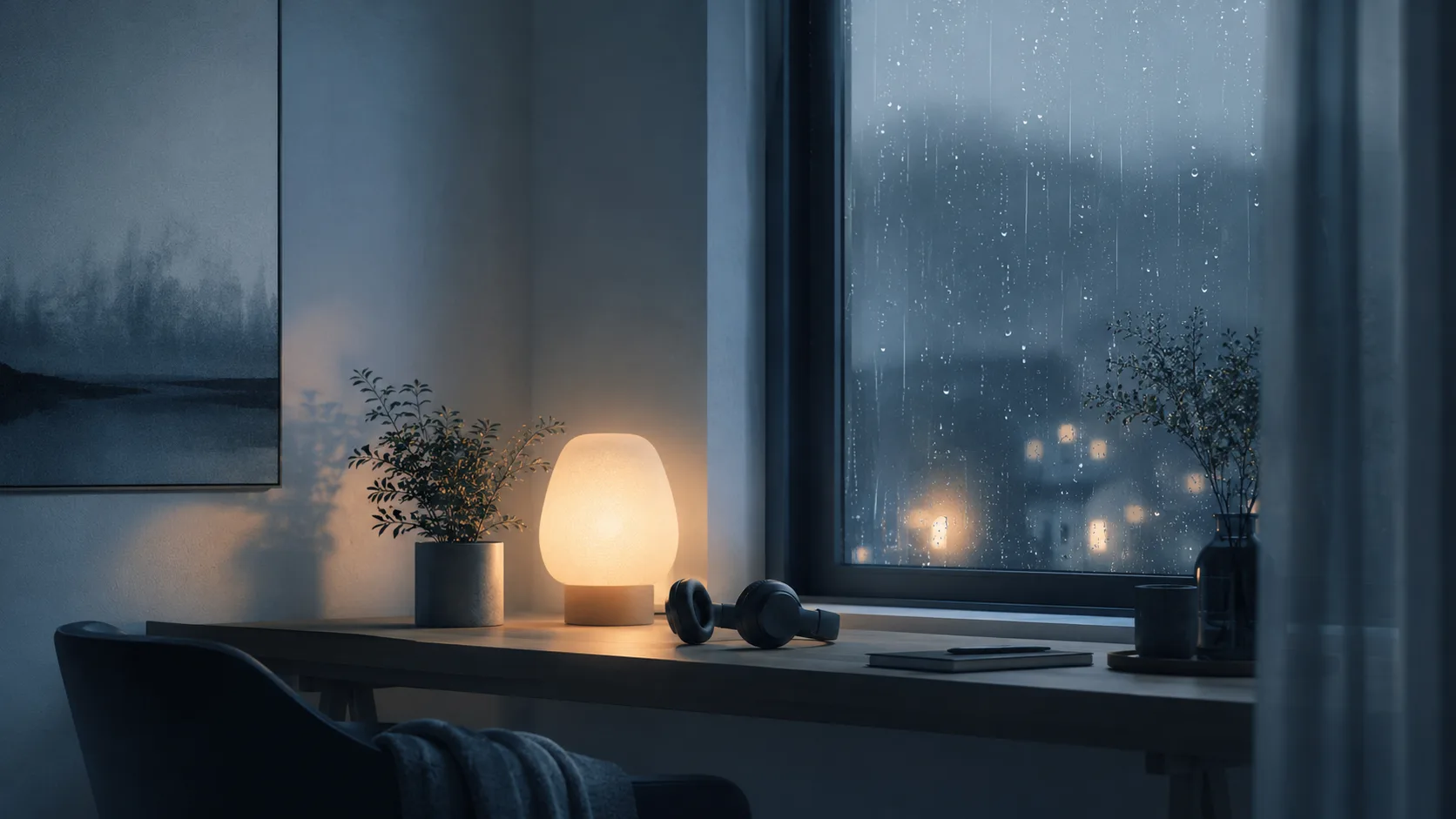 AI-generated
Every big lofi radio — the girl studying at her desk, the rainy jazz café, the space station drifting past Earth — is the same machine underneath: a looping video, a licensed music rotation, and a livestream that never ends. None of it requires a studio, and since the encoder can run on hosted infrastructure, it doesn't even require your computer to be on. Here's the whole build, including the part most tutorials skip: the music rights.
The anatomy of a lofi station
- The music — a rotation of tracks long enough that regulars don't notice the loop. This is 90% of why people stay.
- The visual — one looping scene that sets the mood. Iconic beats elaborate: a single well-chosen animation outperforms constant visual change, because lofi is background by design.
- The stream — the always-on broadcast that turns a video into a place people return to.
Music licensing: the make-or-break step
A lofi station lives or dies on rights, because YouTube's Content ID scans livestreams around the clock. You have three clean paths:
1. Make the music yourself
Full control, zero licensing cost, and the strongest position long-term — your station can't be claimed, and it doubles as a showcase for your own catalog.
2. Work directly with artists
Many independent lofi producers actively want radio placements for exposure. A simple written agreement covering 24/7 livestream use works — this is how several well-known stations built their rotations. Keep records of every agreement.
3. License a catalog
Royalty-free marketplaces and music libraries sell licenses — but read the terms precisely: many "royalty-free" licenses cover uploaded videos yet exclude or separately price livestreaming, and monetized use can be another tier again. The license must explicitly cover continuous livestream broadcast.
Building the visual
You need one video file that loops cleanly. Three routes, in ascending effort: a subtle animated scene made in any motion tool, a commissioned loop from an animator (a one-time cost that permanently defines your brand), or your own footage with slow movement and a color grade. Whatever you choose, make the last frame flow into the first, render at the quality you plan to stream — 1080p is the lofi standard, 4K if your art justifies it — and bake the music into the video file. A 1-hour rendered file with your rotation is the simplest reliable unit; several of them in a looping playlist gives you variety.
Going live, step by step
- 1Prepare your station filesRender your visual + music into video files (MP4, MOV, MKV, WebM, or M4V). A few 1-hour blocks with different track selections make a rotation that never feels short.
- 2Upload to your libraryUpload the files to streamrunnr — they're automatically converted to stream-ready quality, so the render settings don't need to be perfect.
- 3Create the looping playlistOrder your blocks, enable loop, and the rotation cycles endlessly. Swap or add blocks later as your catalog grows.
- 4Connect YouTubeGrab your stream key from YouTube Studio (Create → Go live) and paste it in. Full walkthrough: How to stream 24/7 on YouTube.
- 5Go live and stay liveStart the stream (or schedule the launch moment). Hosted infrastructure keeps it running with automatic recovery attempts — and emails you if the station ever needs a human.
Growing a station people come back to
- Title like a place, not a video. "lofi hip hop radio — beats to study/relax to" works because it describes a destination. Say what the listener gets, always-on.
- Let chat be the third element. The magic of live lofi is ambient company — people studying "together." Check in on chat when you're around; pin the rotation info and rules.
- Evolve the rotation, keep the identity. New tracks keep regulars; consistent art keeps recognition. Change the music often, the scene rarely.
Frequently asked questions
Longer is better for regulars: a 2–4 hour rotation feels fresh even to daily listeners, while a 30-minute loop becomes recognizable fast. Start with what you have — you can extend the playlist over time without restarting the station.
No. The heavy lifting is encoding the stream, and with a hosted service that runs on the provider's infrastructure. You only need a normal computer to produce your video and upload it once.
No — finding music online is not the same as having the right to broadcast it. You need streaming rights: your own productions, direct artist agreements, or a license that explicitly covers livestreaming. Unlicensed tracks get streams claimed or taken down.
YouTube's Content ID scans livestreams and can claim or interrupt a stream that plays matched material. That's why the licensing section of this guide matters more than any technical step: a station built on cleared music simply doesn't have this problem.
Monetization runs through YouTube's Partner Program and its requirements, which YouTube defines and updates. What's certain: you can only monetize content you hold the rights to, so licensing isn't just legal hygiene — it's what makes revenue possible at all.
Ready to go live — 24/7?
Upload your videos, build a looping playlist, and let your stream run on hosted infrastructure. No PC needed, cancel anytime.
Keep reading
 Rights8 min
How to Avoid Copyright Strikes on a 24/7 Stream
How Content ID and DMCA treat always-on streams, the myths that get channels terminated, and a practical rights checklist before you go live around the clock.
Read the guide YouTube7 min
How to Loop a Video on YouTube 24/7
The difference between looping an upload and running a looping livestream — and how to put one video (or a whole playlist) on YouTube around the clock.
Read the guide Monetization8 min
Can You Make Money With a 24/7 Livestream?
An honest look at 24/7 stream revenue: platform programs, sponsorships, your own products — what's realistic, what it costs, and when always-on pays off.
Read the guide YouTube8 min
How to Stream 24/7 on YouTube Without a PC
Step-by-step guide to running a 24/7 YouTube livestream — get your stream key, loop your videos, and stay live around the clock without leaving a computer on.
Read the guide Twitch7 min
How to Run a 24/7 Twitch Stream
Everything you need for an always-on Twitch channel: where to find your stream key, how looping playlists work, and the rules before you go 24/7.
Read the guide Setup7 min
How to Stream 24/7 Without OBS (or Any PC)
OBS is built for live sessions, not always-on channels. Compare the real costs of running your own encoder 24/7 with cloud streaming — and when each one wins.
Read the guide How-to8 min
How to Stream Pre-Recorded Video as Live
Turn finished videos into a real live broadcast on YouTube, Twitch, Kick, or any RTMP — the methods, the platform rules, and a setup with no PC needed.
Read the guide Kick7 min
How to Stream 24/7 on Kick
Set up an always-on Kick channel: where to find your stream key, how to connect via RTMP, and why a younger platform makes 24/7 discovery easier.
Read the guide Multistream8 min
How to Multistream to YouTube and Twitch at the Same Time
Run one channel live on YouTube and Twitch at once: relays vs. independent streams, the platform rules to check, and a setup with no extra bandwidth.
Read the guide